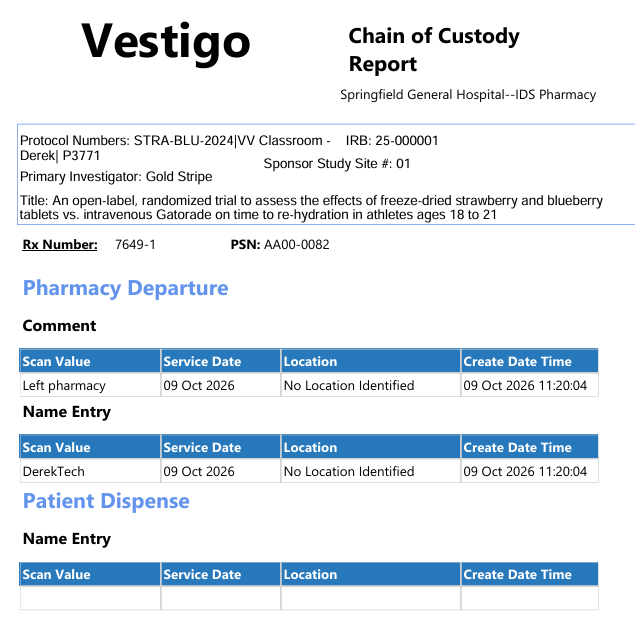
Chain of Custody was developed to accurately capture data points of a workflow set up by IDS personnel to meet the needs of a protocol and/or sponsor. Current functionality only allows workflows to be associated with a dispense but future functionality will allow for Chain of Custody to occur against other inventory transactions.
Note - Chain of Custody may not be used at the site you are monitoring. If you have questions about Chain of Custody, please contact the site.
Chain of Custody reports are currently only able to be downloaded from the Inventory tab on Dispense transactions.
- On the Vestigo Verify Homepage - My Visits Tab, click on View Protocols for an active visit
- Locate the protocol to review and click on View Protocol
- Depending on how the site setup the visit, Verify users may have multiple protocols on one visit.
- Click on the Inventory Tab tab
- Click on the Drug Name
- Scroll down to the Inventory section that appeared
- If the inventory is itemized, you will need to uncheck the Show only inventory with a QOH greater than zero flag.
- Locate the Inventory based off the Lot and Item Number and click View Transactions on the right side
- Scroll down to the Transactions section that appeared
- In the Transactions grid, anything with a Dispense type transaction will have an Rx number to the right of it. If the Rx number is a link, that dispense has a Chain of Custody report associated to the dispense. If it is not a link, there is no report available.
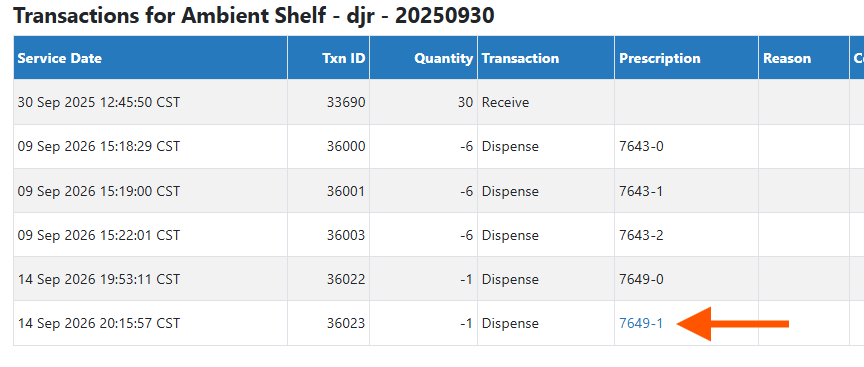
- Click on the Prescription link
- Select the Chain of Custody Workflow from the drop down menu. This will default to the current workflow assigned.
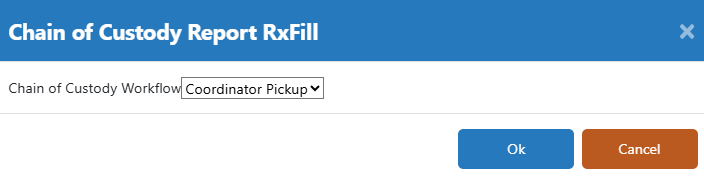
- Click Ok
- The report will download as blinded PDF report