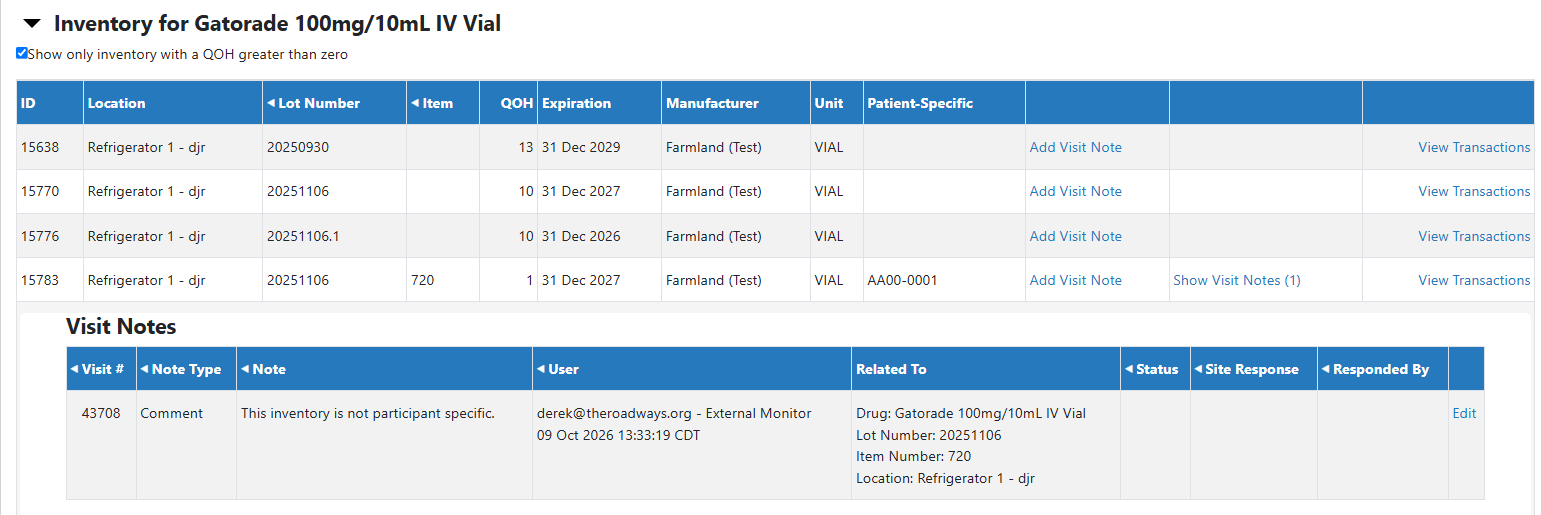
Visit notes are a great tool to leave notes about the visit on the protocol. These notes are visible to other monitors that may also be monitoring that same protocol. Visit Notes can be left at a high level, or they can be left on inventory or certain transactions. Visit Notes do not require an IDS response, but all notes left are visible to the IDS.

Adding a Protocol Visit Note
- On the Vestigo Verify Homepage - My Visits Tab, click on View Protocols for an active visit
- Locate the protocol to review and click on View Protocol
- Depending on how the site setup the visit, Verify users may have multiple protocols on one visit.
- Click on the Visit Notes tab
- Click Add Visit Note
- Enter the Note you would like to add to the protocol
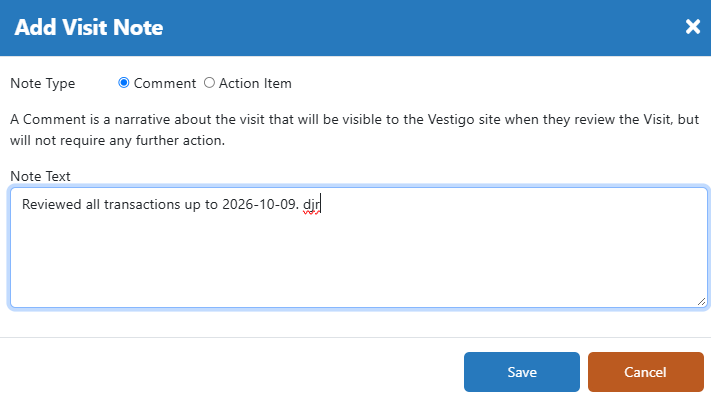
- Click Save
Once you enter the note, you have the ability to edit the note until the visit is over.
Adding a Drug Visit Note
- On the Vestigo Verify Homepage - My Visits Tab, click on View Protocols for an active visit
- Locate the protocol to review and click on View Protocol
- Depending on how the site setup the visit, Verify users may have multiple protocols on one visit.
- Click on the Inventory tab
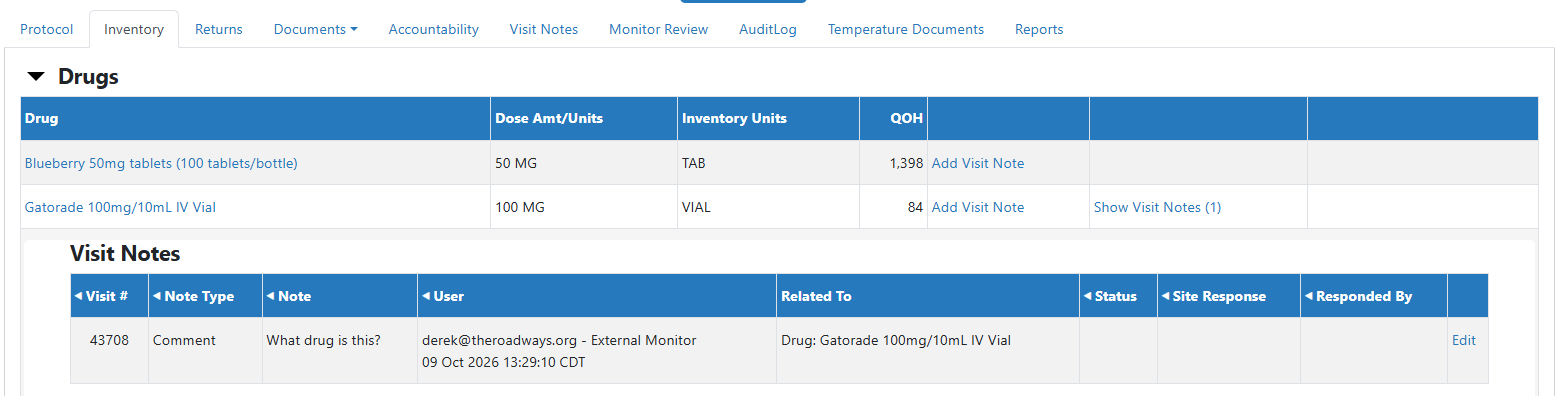
- Click Add Visit Note
- Enter the Note you would like to add to the specific Drug
- Click Save
Once you enter the note, you have the ability to edit the note until the visit is over. You can review the visit note from the Visit Notes tab, or you can click on the Show Visit Notes on the drug line.
Adding an Inventory Visit Note
- On the Vestigo Verify Homepage - My Visits Tab, click on View Protocols for an active visit
- Locate the protocol to review and click on View Protocol
- Depending on how the site setup the visit, Verify users may have multiple protocols on one visit.
- Click on the Inventory tab
- Click on a Drug Name
- If the inventory is itemized and removed from active inventory, you will need to uncheck the Show only inventory with a QOH greater than zero flag.
- Locate the inventory and click Add Visit Note
- Enter the Note you would like to add to the specific Drug
- Click Save
Once you enter the note, you have the ability to edit the note until the visit is over. You can review the visit note from the Visit Notes tab, or you can click on the Show Visit Notes on the drug line.